Easiest way to get your Google Apps email with Gmail
If you’re like me and your main email account is Gmail then when you get yourself setup with Google Apps on your new website domain then you have a problem – a nice easy way to seamlessly retrieve your domain email using Gmail. When I first encountered this problem I struggled to actually find any up-to-date information on the topic. There were a lot of complicated methods of setting up multiple Gmail accounts and using third-party tools to fetch mail between the accounts – no thanks!
But who wants to be having to access three or 4 different email services to keep track of new mail? Not me. There had to be a better way. There was and you’ll be pleased to know it’s actually really easy.
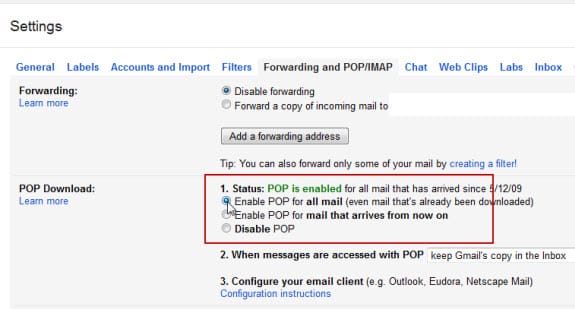
Step 1 – Enable POP on your Google Apps account
Firstly login to your new Google Apps email. Go to Settings and Forwarding and POP/IMAP. Enable POP for your all your email (this will fetch any existing email in your account) and save the change.
Step 2 – Add the account to your existing Gmail account
Login to your main Gmail account. Go to Settings > Accounts and add your Google Apps email account:
Email: [email protected]
Username: [email protected]
Password: xxxxx
Mail server: pop.gmail.com
Port: 995
SSL selected
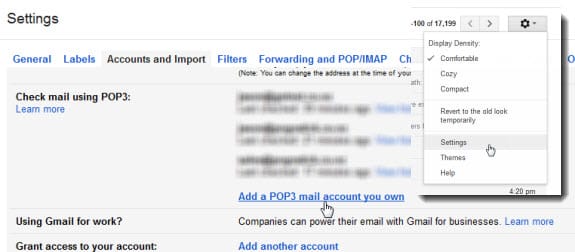
That’s it – you’re done! I recommending choosing the Add a label option so you know where your emails are coming from.